
Dynamic Event Forms
Event forms in Hikma Health are fully dynamic and configurable through the admin interface. This allows organizations to customize data collection without code changes.
How it works
The form system is built around a flexible JSON schema that defines the structure and field configuration for each form. Forms are created and edited through a two-panel editor in the admin dashboard — configuration on the left, live preview on the right. When a healthcare worker syncs their mobile device, all published forms are downloaded and rendered at runtime.
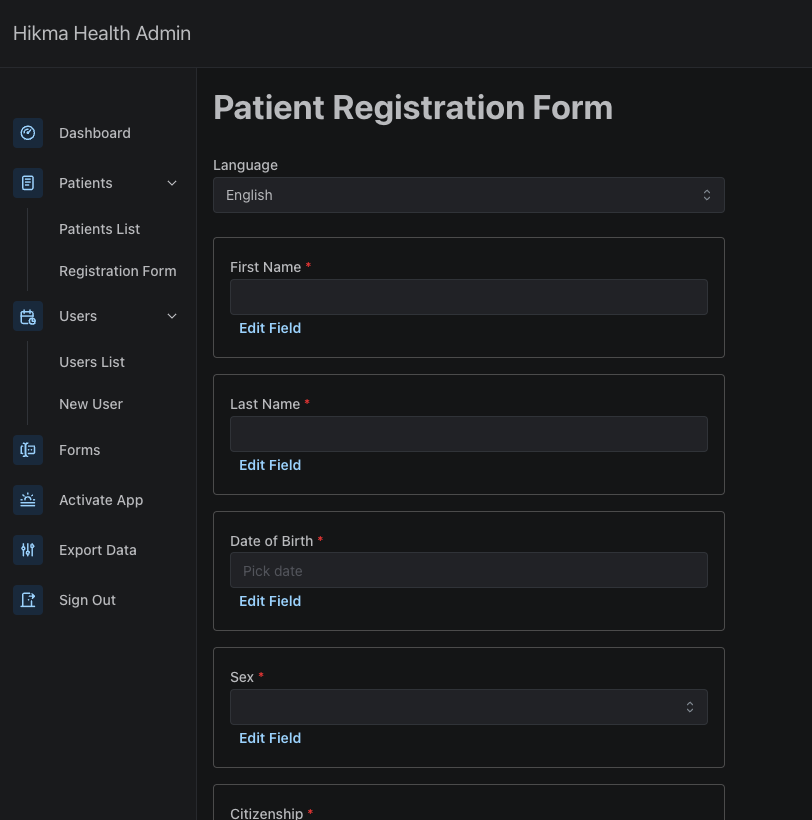
Note: Event forms are separate from the Patient Registration Form, which has its own editor at Patients → Customize Registration Form. The registration form has a fixed set of base fields (name, date of birth, sex, etc.) with the ability to add custom fields on top.
Key features
- No-code form builder — Create and modify forms directly from the admin dashboard with a live preview.
- 9 field types — Text, number, date, select/dropdown, radio, checkbox, file upload, medicine, diagnosis, and display-only elements.
- Drag-and-drop reordering — Rearrange fields by dragging them into the desired order.
- Multi-language support — Translate form titles, field names, descriptions, and option labels into 70+ languages.
- Clinic-level access control — Restrict forms to specific clinics, or make them available to all.
- Offline support — Forms are synced to mobile devices and work without internet connectivity.
- Editable and snapshot modes — Control whether submitted form data can be edited, and whether forms capture point-in-time snapshots.
Creating a new form
- Navigate to the Event Forms section in the admin interface.
- Click Create New Form.
- Set the form name, description, and primary language.
- Optionally restrict the form to specific clinics (leave empty for all clinics).
- Add fields using the field type buttons at the bottom of the editor.
- Configure each field’s properties (name, description, required, options, etc.).
- Drag and drop fields to reorder them as needed.
- Use the live preview panel on the right to verify the form looks correct.
- Save the form — it will be available on mobile devices after their next sync.
Supported field types
| Field Type | Description |
|---|---|
| Text | Free-text input. Supports short (single line) and long (textarea) variants. Can include unit selectors for measurements (mg, kg, mmHg, etc.). |
| Date | Date picker with optional min/max date constraints. |
| Select / Dropdown | Single or multi-select from a list of options. |
| Radio | Single selection from a list displayed as radio buttons. |
| File | File upload supporting images (PNG, JPEG) and PDFs. Configurable min/max file count. |
| Medicine | Structured medicine entry with fields for name, route, form, dose, frequency, and duration with unit selectors. |
| Diagnosis | Diagnosis picker linked to the diagnosis catalogue. |
| Text Block | Display-only text for instructions, headers, or descriptions within the form. Configurable size (sm through xxl). Not an input field. |
| Separator | A visual divider line between form sections. Not an input field. |
Translations
Forms support full multi-language translation. Each form has a primary language, and translations can be added for:
- Form title and description
- Field names and descriptions
- Option labels (for select, radio, and checkbox fields)
Translations are managed inline in the form editor using the translation panel on each field. The mobile app renders the form in the user’s preferred language when a translation is available.
Form schema structure
Each form is stored as a JSON document. Fields use a _tag discriminator to identify their type. Here is an example of the high-level structure:
{
  "id": "uuid",
  "name": "Patient Consultation",
  "description": "Initial patient assessment",
  "language": "en",
  "is_editable": true,
  "is_snapshot_form": false,
  "clinic_ids": ["clinic-uuid"],
  "form_fields": [
    {
      "_tag": "free-text",
      "fieldType": "free-text",
      "id": "field_id",
      "name": "Chief Complaint",
      "description": "Reason for visit",
      "required": true,
      "inputType": "text",
      "length": "short",
      "units": []
    },
    {
      "_tag": "options",
      "fieldType": "options",
      "id": "field_id",
      "name": "Severity",
      "required": true,
      "inputType": "select",
      "multi": false,
      "options": [
        { "id": "opt1", "label": "Mild", "value": "mild" },
        { "id": "opt2", "label": "Moderate", "value": "moderate" },
        { "id": "opt3", "label": "Severe", "value": "severe" }
      ]
    }
  ],
  "translations": [
    {
      "fieldId": "__form_name__",
      "name": { "en": "Patient Consultation", "es": "Consulta del Paciente" },
      "description": {},
      "options": {}
    }
  ]
}
Syncing to mobile
Event forms are pushed one-way from the server to mobile devices during sync. Mobile devices cannot modify form definitions — they only submit data collected using the forms. Forms are delta-synced based on timestamps, so only new or updated forms are transferred. If a form is restricted to specific clinics, it will only sync to devices associated with those clinics.